Our Short List of 3

- Specs: 27-inch IPS panel; 3840 x 2160 4K resolution; 99/100 Adobe RGB, 99/100 DCI-P3, 100/100 sRGB coverage; 16-bit 3D LUT; hardware calibration support; Delta E under 1.5; HDR10 and HLG support; 400 nits brightness; USB-C with 90W power delivery; DisplayPort 1.4 and 2 HDMI 2.0 inputs; shading hood and Hotkey Puck G3 included; 60 Hz refresh; 5 ms response.
- Best for: Photographers and photo-video editors who need one screen for print files in Lightroom and P3 video grades in Premiere Pro.
- Watch out for: The hood adds depth to the desk footprint, and hardware calibration needs a separate colorimeter probe that is not in the box.
- View on Amazon

- Specs: 31.5-inch IPS Black panel; 3840 x 2160 4K resolution; 98/100 DCI-P3, 100/100 sRGB, 100/100 Rec. 709 coverage; factory calibration report; Delta E under 2; HDR10 and DisplayHDR 400; 400 nits brightness; Thunderbolt 3 with 85W power delivery; DisplayPort 1.4 and 2 HDMI 2.0 inputs; KVM switch; Hotkey Puck G2 included; 60 Hz refresh; 5 ms GtG response.
- Best for: Video editors and mixed-media creators who want a big 4K canvas, Thunderbolt 3 docking, and deep blacks for grading.
- Watch out for: Adobe RGB coverage is narrower than the SW272U, so print-first photographers should weigh the photo pick above first.
- View on Amazon
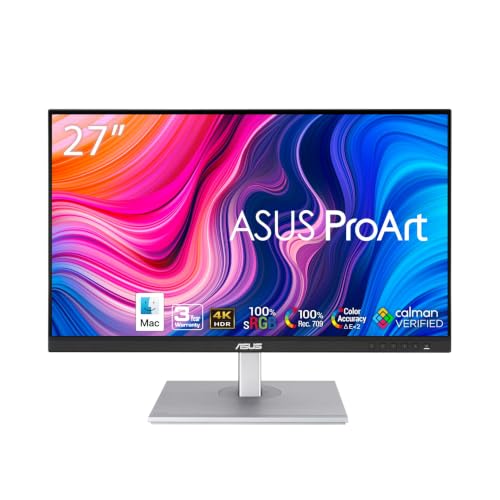
- Specs: 27-inch IPS panel; 3840 x 2160 4K resolution; 100/100 sRGB, 100/100 Rec. 709 coverage; Calman Verified; Delta E under 2; USB-C with 65W power delivery; DisplayPort and HDMI inputs; USB hub; ProArt preset color modes; ergonomic stand with tilt, pivot, swivel, and height adjustment; 60 Hz refresh.
- Best for: Creators publishing to web and video who want a verified 4K color screen at a lower cost than the photo-first flagships.
- Watch out for: Adobe RGB and DCI-P3 coverage are narrower than the BenQ photo picks, so it is a weaker match for print work and wide-gamut video grades.
- View on Amazon
All 5 Picks at a Glance
| Product | Specs | Action |
|---|---|---|
| 1. BenQ SW272U |
| Check price on Amazon |
| 2. BenQ PD3225U |
| Check price on Amazon |
| 3. ASUS ProArt PA279CV |
| Check price on Amazon |
 4. BenQ SW270C |
| Check price on Amazon |
 5. ViewSonic VP2768a-4K |
| Check price on Amazon |
Key takeaways
- Find a color-accurate monitor for Photoshop, Lightroom, Premiere Pro, and Illustrator. Compare five wide-gamut 4K and QHD displays for Creative Cloud.
Adobe Creative Cloud apps live or die by color. A photo edited in Lightroom, a poster built in Illustrator, or a cut finished in Premiere Pro all pass through the same screen, and if that screen bends hues, shifts skin tones, or crushes shadow detail, the work that leaves the desk will not match what the maker saw while building it. A general office display can look bright and pleasant while still showing the wrong reds. The monitors below were picked for one job only: showing Creative Cloud work accurately, with wide gamut coverage, factory calibration, hardware calibration support, and even light output from edge to edge.
Disclosure: As an Amazon Associate, we earn from qualifying purchases.
Quick Picks
- Best overall for photo and video: BenQ SW272U — 27-inch 4K with 99/100 Adobe RGB and 99/100 DCI-P3 coverage, plus a shading hood.
- Best large canvas for mixed Creative Cloud work: BenQ PD3225U — 31.5-inch 4K IPS Black panel with Thunderbolt 3 and a wide P3 gamut.
- Best value 4K for everyday Creative Cloud use: ASUS ProArt PA279CV — 27-inch 4K, full sRGB and Rec. 709 coverage, Calman Verified.
- Best print-first monitor: BenQ SW270C — 27-inch QHD with 99/100 Adobe RGB coverage and hardware calibration for print matching.
- Best 4K all-rounder with a color uniformity function: ViewSonic VP2768a-4K — 27-inch 4K, full sRGB coverage, Pantone Validated, 14-bit 3D LUT.
| Monitor | Size | Resolution | Panel | Gamut | Calibration | USB-C power |
|---|---|---|---|---|---|---|
| BenQ SW272U | 27-inch | 3840 x 2160 | IPS | 99/100 Adobe RGB, 99/100 DCI-P3 | Hardware calibration, 16-bit 3D LUT | 90W |
| BenQ PD3225U | 31.5-inch | 3840 x 2160 | IPS Black | 98/100 DCI-P3, 100/100 sRGB | Factory calibration report, Delta E under 2 | 85W |
| ASUS ProArt PA279CV | 27-inch | 3840 x 2160 | IPS | 100/100 sRGB, 100/100 Rec. 709 | Calman Verified, Delta E under 2 | 65W |
| BenQ SW270C | 27-inch | 2560 x 1440 | IPS | 99/100 Adobe RGB, 100/100 sRGB | Hardware calibration, 16-bit 3D LUT | 60W |
| ViewSonic VP2768a-4K | 27-inch | 3840 x 2160 | IPS | 100/100 sRGB, Rec. 709 | Pantone Validated, 14-bit 3D LUT | 90W |
How to Choose
Match the gamut to the app. Photoshop and Lightroom reward Adobe RGB coverage, because print work and wide-gamut photo files live in that space; a monitor that covers 99/100 of Adobe RGB shows printable cyans and greens that a plain sRGB screen clips away. Premiere Pro rewards DCI-P3 coverage, because video timelines and HDR grades are built around P3 primaries. Illustrator work usually sits in sRGB or CMYK print space, so full sRGB coverage matters more than an extreme P3 number. If the work spans photo and video, pick a monitor that covers both Adobe RGB and DCI-P3 at 98/100 or better, and check that it offers a dedicated mode for each space rather than one stretched mode for everything.
Look for a Delta E figure, not a vague promise. Delta E measures how far a shown color sits from the color the file calls for; a figure under 2 means the gap is small enough that most eyes will not spot it in normal editing. Every pick below lists Delta E under 2, and the BenQ SW272U lists Delta E under 1.5. A monitor with no Delta E figure at all is asking for trust without evidence, and Creative Cloud work should not rest on that.
Factory calibration helps, hardware calibration lasts. A factory calibration report means the panel was measured and tuned before it shipped, so colors are close to correct on day one. Hardware calibration goes further: a colorimeter probe measures the screen, and the correction is written into the monitor itself rather than into the computer graphics card. That matters because the correction then follows the monitor to any machine it is plugged into, and it survives driver updates and app changes.
Check panel uniformity, not just center brightness. A monitor can be accurate in the middle and drift toward green or magenta at the corners, which shows up as uneven skies in Lightroom and patchy gradients in Illustrator. Uniformity technology measures the panel in zones and evens out brightness and color across the whole surface.
Resolution sets the working room. A 4K panel at 27 inches shows fine detail in a 24-megapixel photo at full zoom and keeps Premiere Pro timelines legible with room for scopes and bins. A QHD panel at 27 inches, like the BenQ SW270C, gives up some pixel density but keeps text and interface elements larger and easier to read, which suits print-first photographers who spend hours in Lightroom. A 31.5-inch 4K panel, like the BenQ PD3225U, adds desk space for two apps side by side.
Do not let refresh speed or gaming features lead the choice. Creative Cloud apps do not need a 144 Hz or 240 Hz panel, and a high refresh number says nothing about color. A 60 Hz panel is the norm for every creator display below, and that is fine for stills, design, and video editing.
5 Best Options
1. BenQ SW272U
- Specs: 27-inch IPS panel; 3840 x 2160 4K resolution; 99/100 Adobe RGB, 99/100 DCI-P3, 100/100 sRGB coverage; 16-bit 3D LUT; hardware calibration support; Delta E under 1.5; HDR10 and HLG support; 400 nits brightness; USB-C with 90W power delivery; DisplayPort 1.4 and 2 HDMI 2.0 inputs; shading hood and Hotkey Puck G3 included; 60 Hz refresh; 5 ms response.
- Best for: Photographers and photo-video editors who need one screen for print files in Lightroom and P3 video grades in Premiere Pro.
- Watch out for: The hood adds depth to the desk footprint, and hardware calibration needs a separate colorimeter probe that is not in the box.
- View on Amazon
The SW272U is the most complete photo-first monitor in this roundup, and it is the pick for creators whose work moves between Lightroom, Photoshop, and Premiere Pro. Its 27-inch 4K IPS panel covers 99/100 of Adobe RGB and 99/100 of DCI-P3, so the same screen serves a print file and a video grade without a compromise in either direction. A 16-bit 3D LUT and hardware calibration support let a probe write corrections into the monitor itself, and the included shading hood blocks room light from washing out shadow detail while editing. A nano matte panel finish cuts glare without the sparkle that some matte coatings add to fine detail.
2. BenQ PD3225U
- Specs: 31.5-inch IPS Black panel; 3840 x 2160 4K resolution; 98/100 DCI-P3, 100/100 sRGB, 100/100 Rec. 709 coverage; factory calibration report; Delta E under 2; HDR10 and DisplayHDR 400; 400 nits brightness; Thunderbolt 3 with 85W power delivery; DisplayPort 1.4 and 2 HDMI 2.0 inputs; KVM switch; Hotkey Puck G2 included; 60 Hz refresh; 5 ms GtG response.
- Best for: Video editors and mixed-media creators who want a big 4K canvas, Thunderbolt 3 docking, and deep blacks for grading.
- Watch out for: Adobe RGB coverage is narrower than the SW272U, so print-first photographers should weigh the photo pick above first.
- View on Amazon
The PD3225U is the large-canvas pick, built for desks where Premiere Pro, Photoshop, and Illustrator stay open together. Its 31.5-inch 4K IPS Black panel gives deeper blacks than a standard IPS panel, which helps when grading dark scenes or checking shadow detail in a photo. DCI-P3 coverage of 98/100 and full sRGB and Rec. 709 coverage make it a strong video-first screen that still handles stills and design work well, and a factory calibration report with Delta E under 2 backs the color claims. Thunderbolt 3 with 85W power delivery drives a laptop and a second display through one cable, and a KVM switch lets one keyboard and mouse serve two machines.
3. ASUS ProArt PA279CV
- Specs: 27-inch IPS panel; 3840 x 2160 4K resolution; 100/100 sRGB, 100/100 Rec. 709 coverage; Calman Verified; Delta E under 2; USB-C with 65W power delivery; DisplayPort and HDMI inputs; USB hub; ProArt preset color modes; ergonomic stand with tilt, pivot, swivel, and height adjustment; 60 Hz refresh.
- Best for: Creators publishing to web and video who want a verified 4K color screen at a lower cost than the photo-first flagships.
- Watch out for: Adobe RGB and DCI-P3 coverage are narrower than the BenQ photo picks, so it is a weaker match for print work and wide-gamut video grades.
- View on Amazon
The PA279CV is the value pick, and it proves that a Creative Cloud monitor does not need a four-figure budget to be trustworthy. Its 27-inch 4K IPS panel covers 100/100 of sRGB and 100/100 of Rec. 709 with Delta E under 2, and Calman Verified tuning means the panel was measured against a known color target before shipping. That gamut suits web publishing, social content, and video work in Rec. 709, which covers a large share of everyday Creative Cloud output. USB-C with 65W power delivery charges a laptop while carrying the video signal, and the ProArt preset modes switch the panel between sRGB, Rec. 709, and other color spaces from the on-screen menu.
4. BenQ SW270C
- Specs: 27-inch IPS panel; 2560 x 1440 QHD resolution; 99/100 Adobe RGB, 100/100 sRGB, 97/100 DCI-P3 coverage; 16-bit 3D LUT; hardware calibration support; Delta E under 2; 300 nits brightness; 1000:1 contrast; USB-C with 60W power delivery; DisplayPort and 2 HDMI inputs; shading hood included; 60 Hz refresh; 5 ms response.
- Best for: Photographers who print their work and need Adobe RGB accuracy, hardware calibration, and a hood at a mid-range size.
- Watch out for: QHD resolution shows less fine detail than the 4K picks, so video editors who crop into 4K footage will feel the gap.
- View on Amazon
The SW270C is the print-first pick, and it is the oldest design in this roundup for a reason: nothing else at its size matches a print workflow so directly. Its 27-inch QHD IPS panel covers 99/100 of Adobe RGB, which is the gamut that matters when a Lightroom edit has to match a physical print, and hardware calibration support with a 16-bit 3D LUT lets a probe tune the panel for paper profiles. A shading hood is included, and BenQ Paper Color Sync software helps line up on-screen color with a chosen paper type. QHD resolution keeps interface text large and readable during long editing sessions, and the 300-nit panel is bright enough for a normal indoor edit suite.
5. ViewSonic VP2768a-4K
- Specs: 27-inch IPS panel; 3840 x 2160 4K resolution; 100/100 sRGB, Rec. 709, EBU, and SMPTE-C coverage; Delta E under 2; Pantone Validated; 14-bit 3D LUT; hardware calibration support; HDR10 support; 350 nits brightness; 1300:1 contrast; USB-C with 90W power delivery; RJ45 Ethernet; HDMI 2.0 and DisplayPort inputs; 60 Hz refresh; 6 ms response.
- Best for: Designers and photo editors who want a 4K color-accurate screen with a uniformity function and strong laptop docking in one unit.
- Watch out for: Adobe RGB and DCI-P3 coverage are narrower than the BenQ SW picks, so wide-gamut print and cinema-grade video work fit the SW272U better.
- View on Amazon
The VP2768a-4K is the all-rounder, a 27-inch 4K ColorPro display that covers the everyday Creative Cloud bases with room to spare. Its IPS panel covers 100/100 of sRGB with Delta E under 2 and Pantone Validated color, which suits Illustrator layouts, Lightroom catalogs, and Rec. 709 video edits alike. A 14-bit 3D LUT and hardware calibration support through Colorbration Plus give it a proper calibration path, and a color uniformity function evens out brightness and color across the screen. USB-C with 90W power delivery and an RJ45 Ethernet port turn it into a compact one-cable dock for a laptop-based edit desk.
Which One Fits
Pick the BenQ SW272U when the work spans photo and video and color accuracy is the whole point; its dual Adobe RGB and DCI-P3 coverage plus hardware calibration make it the safest single-screen answer for a mixed Creative Cloud desk. Pick the BenQ PD3225U when the timeline is the main workspace and a bigger 4K canvas with Thunderbolt 3 docking matters more than Adobe RGB depth. Pick the ASUS ProArt PA279CV when the output is mostly web, social, and Rec. 709 video and the budget should stay modest without giving up verified color. Pick the BenQ SW270C when prints are the deliverable and Adobe RGB accuracy with a hood matters more than 4K pixel density. Pick the ViewSonic VP2768a-4K when the desk needs a 4K all-rounder with a uniformity function and one-cable laptop docking at a mid-range size.
Common Mistakes
Buying on brightness alone. A 500-nit or 600-nit panel can still show the wrong hues, and extra brightness in a dim edit room only makes the mismatch harder to spot. Check gamut coverage and Delta E first, then treat brightness as a secondary number that needs to suit the room light, not lead the choice.
Leaving the monitor in its vivid out-of-box mode. Most creator displays ship with a standard or vivid picture mode that pushes saturation for shelf appeal, and that mode will lie about color in every Creative Cloud app. Switch to the sRGB, Adobe RGB, or DCI-P3 preset that matches the work before the first edit, and leave it there.
Skipping calibration after the move. A factory calibration report describes the panel as it left the factory, and panels drift over months of use. A hardware calibration probe used every few months keeps the screen honest, and the correction lives in the monitor on the three picks here that support it.
Matching the wrong gamut to the deliverable. Editing a print file on an sRGB-only screen hides printable colors, and grading a P3 video on an Adobe RGB-led screen hides video colors. Name the deliverable first — print, web, or video — then pick the gamut that covers it, rather than buying the widest gamut on the shelf and hoping it fits everything.
Judging color under mixed room light. A warm desk lamp on one side and daylight from a window on the other will shift how edits look even on a fine panel. Edit under steady, neutral room light, keep direct sun off the screen, and use the shading hood on the BenQ photo picks when the room cannot be controlled.
FAQ
Which monitor is best for Photoshop and Lightroom?
The BenQ SW272U is the strongest match for Photoshop and Lightroom, because its 99/100 Adobe RGB coverage shows the printable colors those apps work with, and its hardware calibration support with a 16-bit 3D LUT keeps the panel tuned over time. The BenQ SW270C is the print-first alternative when a QHD panel and a lower cost matter more than 4K density.
Do I need a 4K monitor for Premiere Pro?
A 4K panel helps in Premiere Pro because it shows full-resolution footage with room left for the timeline, scopes, and bins, and all four 4K picks here serve that layout well. The BenQ PD3225U adds the most room with its 31.5-inch screen, while the BenQ SW272U adds the widest P3 coverage for color grading. A QHD panel still edits video capably, but cropping into 4K footage will feel tighter.
What does hardware calibration do that a factory report does not?
A factory report records how the panel measured before it shipped, while hardware calibration uses a probe to measure the panel as it is now and writes the correction into the monitor itself. That correction follows the monitor to any computer, survives driver changes, and can be repeated as the panel ages. The BenQ SW272U, BenQ SW270C, and ViewSonic VP2768a-4K support it with a separate probe.
Is USB-C power delivery important for a Creative Cloud monitor?
USB-C power delivery matters for laptop-based desks, because one cable can carry the video signal and charge the machine at the same time, which keeps the desk simple. The BenQ SW272U and ViewSonic VP2768a-4K deliver 90W, the BenQ PD3225U delivers 85W through Thunderbolt 3, and the ASUS ProArt PA279CV delivers 65W. Match the wattage to the laptop: a 13-inch or 14-inch machine usually runs well on 65W, while a larger laptop with a discrete graphics chip wants 85W or 90W.